
1. Introduction
Amorfs Data for Figma is a plugin tool that helps designers embed structured data directly into their image files, eliminating scanning errors and the guesswork that comes with automated image processing.
Most image files, like receipts or ID cards, rely on compute-intensive processes to interpret the text inside them. This plugin skips that entirely by embedding the information as structured data directly into the file itself, giving you full control over how your design is read and understood, and no coding required.
1. Introduction
Amorfs Data for Figma is a plugin tool that helps designers embed structured data directly into their image files, eliminating scanning errors and the guesswork that comes with automated image processing.
Most image files, like receipts or ID cards, rely on compute-intensive processes to interpret the text inside them. This plugin skips that entirely by embedding the information as structured data directly into the file itself, giving you full control over how your design is read and understood, and no coding required.
1. Introduction
Amorfs Data for Figma is a plugin tool that helps designers embed structured data directly into their image files, eliminating scanning errors and the guesswork that comes with automated image processing.
Most image files, like receipts or ID cards, rely on compute-intensive processes to interpret the text inside them. This plugin skips that entirely by embedding the information as structured data directly into the file itself, giving you full control over how your design is read and understood, and no coding required.
2. Problem & Solution
The Problem
When designers include text and structured information in their work (personal data, business cards, portfolios, links, etc.), there's no reliable way to control how that content gets interpreted downstream.
Specifically:
You can't predict how a system will read your text elements
You can't include hidden context (like URLs or implied relationships)
There's no standard way to store structured data inside an image file
The Solution
The Amorfs Data plugin solves this by:
Giving you a simple, intuitive way to describe your data to any downstream system
Automatically extracting structured information from your Figma designs
Embedding that data directly into your exported image in a clean, fast, and format-ready workflow
2. Problem & Solution
The Problem
When designers include text and structured information in their work (personal data, business cards, portfolios, links, etc.), there's no reliable way to control how that content gets interpreted downstream.
Specifically:
You can't predict how a system will read your text elements
You can't include hidden context (like URLs or implied relationships)
There's no standard way to store structured data inside an image file
The Solution
The Amorfs Data plugin solves this by:
Giving you a simple, intuitive way to describe your data to any downstream system
Automatically extracting structured information from your Figma designs
Embedding that data directly into your exported image in a clean, fast, and format-ready workflow
2. Problem & Solution
The Problem
When designers include text and structured information in their work (personal data, business cards, portfolios, links, etc.), there's no reliable way to control how that content gets interpreted downstream.
Specifically:
You can't predict how a system will read your text elements
You can't include hidden context (like URLs or implied relationships)
There's no standard way to store structured data inside an image file
The Solution
The Amorfs Data plugin solves this by:
Giving you a simple, intuitive way to describe your data to any downstream system
Automatically extracting structured information from your Figma designs
Embedding that data directly into your exported image in a clean, fast, and format-ready workflow
3. How to Use
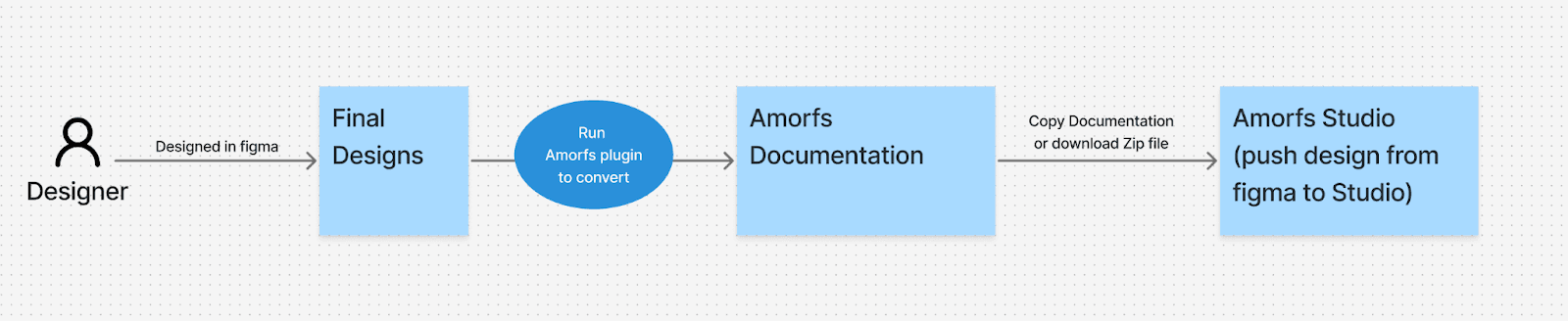
If you work in Figma, you can install and run the plugin directly from your design file.
New to Figma plugins? Follow the official guide here:
👉 https://help.figma.com/hc/en-us/articles/360042532714-Use-plugins-in-files
Step 1 — Install Amorfs Converter
Find and install the plugin from the Figma Community.
Step 2 — Select a Layer
On your canvas, select exactly one object - either a Frame or a Component. The plugin won't run on multiple selections or other layer types.
Step 3 — Analysis Starts Automatically
No need to click anything. Once you've made a valid selection, the plugin begins processing on its own.
Step 4 — Wait a Moment
Give it a few seconds to finish. Processing time depends on the complexity of your design.
Step 5 — Review Your Output
Once done, you'll see:
Preview - A rendered view of your Amorfs document. You can zoom in or reset the view as needed.
Content Tabs - Three tabs to explore what was extracted:
Data - the structured data pulled from your design
Template - the generated template format
Full - the complete bundle (data + template combined)
Save as Image - Download your design as an image with Amorfs data embedded, ready for machine processing.
Copy - Copy the contents of the current tab to paste into Amorfs Studio or anywhere else you need it.
Download (.zip) - Download a full package with your Amorfs document and all associated assets.
3. How to Use
If you work in Figma, you can install and run the plugin directly from your design file.
New to Figma plugins? Follow the official guide here:
👉 https://help.figma.com/hc/en-us/articles/360042532714-Use-plugins-in-files
Step 1 — Install Amorfs Converter
Find and install the plugin from the Figma Community.
Step 2 — Select a Layer
On your canvas, select exactly one object - either a Frame or a Component. The plugin won't run on multiple selections or other layer types.
Step 3 — Analysis Starts Automatically
No need to click anything. Once you've made a valid selection, the plugin begins processing on its own.
Step 4 — Wait a Moment
Give it a few seconds to finish. Processing time depends on the complexity of your design.
Step 5 — Review Your Output
Once done, you'll see:
Preview - A rendered view of your Amorfs document. You can zoom in or reset the view as needed.
Content Tabs - Three tabs to explore what was extracted:
Data - the structured data pulled from your design
Template - the generated template format
Full - the complete bundle (data + template combined)
Save as Image - Download your design as an image with Amorfs data embedded, ready for machine processing.
Copy - Copy the contents of the current tab to paste into Amorfs Studio or anywhere else you need it.
Download (.zip) - Download a full package with your Amorfs document and all associated assets.
3. How to Use
If you work in Figma, you can install and run the plugin directly from your design file.
New to Figma plugins? Follow the official guide here:
👉 https://help.figma.com/hc/en-us/articles/360042532714-Use-plugins-in-files
Step 1 — Install Amorfs Converter
Find and install the plugin from the Figma Community.
Step 2 — Select a Layer
On your canvas, select exactly one object - either a Frame or a Component. The plugin won't run on multiple selections or other layer types.
Step 3 — Analysis Starts Automatically
No need to click anything. Once you've made a valid selection, the plugin begins processing on its own.
Step 4 — Wait a Moment
Give it a few seconds to finish. Processing time depends on the complexity of your design.
Step 5 — Review Your Output
Once done, you'll see:
Preview - A rendered view of your Amorfs document. You can zoom in or reset the view as needed.
Content Tabs - Three tabs to explore what was extracted:
Data - the structured data pulled from your design
Template - the generated template format
Full - the complete bundle (data + template combined)
Save as Image - Download your design as an image with Amorfs data embedded, ready for machine processing.
Copy - Copy the contents of the current tab to paste into Amorfs Studio or anywhere else you need it.
Download (.zip) - Download a full package with your Amorfs document and all associated assets.
4. Limitations
A few things to keep in mind before you export:
Selection: The plugin only works with a single Frame or Component. Selecting multiple layers, or an unsupported layer type, will show an invalid selection message.
Hidden & Locked Layers: These are skipped automatically during analysis. If something seems missing in your output, check whether any relevant layers are hidden or locked.
Layer Naming: Layer names are cleaned up to a standard format automatically. Vague names like "Frame 1" may trigger a warning. If two layers end up with the same name after clean-up, the plugin will add a suffix to tell them apart — so clear, descriptive names will always give you the best results.
Label & Value Pairs: If you have two text layers stacked where the first one ends with a colon (e.g. "Name:"), the plugin will treat them as a label/value pair in the template. This is intentional behaviour, not an error.
Image Fills: Designs with more than 12 image-fill fields will return an error and stop the export. Try simplifying your design and re-analyzing.
Complex SVGs: Very complex vector graphics may not export as SVGs. If this happens, the plugin will let you know and suggest switching to a raster (PNG/JPG) image in Figma instead.
File Size: If the combined output exceeds ~10 MB, the analysis won't complete. This is usually caused by heavy images, dense vectors, or a very large number of layers. Try reducing the complexity and running the analysis again.
Asset Errors: If any asset fails to export, the whole analysis will stop with no download available. You'll need to fix the affected layer and try again.
Large Designs: For very complex designs, the plugin processes up to approximately 20,000 layers before stopping safely. If your design is this large, consider splitting it into smaller components.
Connection Issue: If the plugin interface doesn't appear within a few seconds of opening, close it, reopen the plugin, and re-select your frame.
4. Limitations
A few things to keep in mind before you export:
Selection: The plugin only works with a single Frame or Component. Selecting multiple layers, or an unsupported layer type, will show an invalid selection message.
Hidden & Locked Layers: These are skipped automatically during analysis. If something seems missing in your output, check whether any relevant layers are hidden or locked.
Layer Naming: Layer names are cleaned up to a standard format automatically. Vague names like "Frame 1" may trigger a warning. If two layers end up with the same name after clean-up, the plugin will add a suffix to tell them apart — so clear, descriptive names will always give you the best results.
Label & Value Pairs: If you have two text layers stacked where the first one ends with a colon (e.g. "Name:"), the plugin will treat them as a label/value pair in the template. This is intentional behaviour, not an error.
Image Fills: Designs with more than 12 image-fill fields will return an error and stop the export. Try simplifying your design and re-analyzing.
Complex SVGs: Very complex vector graphics may not export as SVGs. If this happens, the plugin will let you know and suggest switching to a raster (PNG/JPG) image in Figma instead.
File Size: If the combined output exceeds ~10 MB, the analysis won't complete. This is usually caused by heavy images, dense vectors, or a very large number of layers. Try reducing the complexity and running the analysis again.
Asset Errors: If any asset fails to export, the whole analysis will stop with no download available. You'll need to fix the affected layer and try again.
Large Designs: For very complex designs, the plugin processes up to approximately 20,000 layers before stopping safely. If your design is this large, consider splitting it into smaller components.
Connection Issue: If the plugin interface doesn't appear within a few seconds of opening, close it, reopen the plugin, and re-select your frame.
4. Limitations
A few things to keep in mind before you export:
Selection: The plugin only works with a single Frame or Component. Selecting multiple layers, or an unsupported layer type, will show an invalid selection message.
Hidden & Locked Layers: These are skipped automatically during analysis. If something seems missing in your output, check whether any relevant layers are hidden or locked.
Layer Naming: Layer names are cleaned up to a standard format automatically. Vague names like "Frame 1" may trigger a warning. If two layers end up with the same name after clean-up, the plugin will add a suffix to tell them apart — so clear, descriptive names will always give you the best results.
Label & Value Pairs: If you have two text layers stacked where the first one ends with a colon (e.g. "Name:"), the plugin will treat them as a label/value pair in the template. This is intentional behaviour, not an error.
Image Fills: Designs with more than 12 image-fill fields will return an error and stop the export. Try simplifying your design and re-analyzing.
Complex SVGs: Very complex vector graphics may not export as SVGs. If this happens, the plugin will let you know and suggest switching to a raster (PNG/JPG) image in Figma instead.
File Size: If the combined output exceeds ~10 MB, the analysis won't complete. This is usually caused by heavy images, dense vectors, or a very large number of layers. Try reducing the complexity and running the analysis again.
Asset Errors: If any asset fails to export, the whole analysis will stop with no download available. You'll need to fix the affected layer and try again.
Large Designs: For very complex designs, the plugin processes up to approximately 20,000 layers before stopping safely. If your design is this large, consider splitting it into smaller components.
Connection Issue: If the plugin interface doesn't appear within a few seconds of opening, close it, reopen the plugin, and re-select your frame.





" height="47.8243px" id="Fi98aqQOS" width="48.001px"/><path d="M 20.148 22.45 L 21.494 15.115 L 13.655 15.115 L 13.655 12.521 C 13.655 8.646 15.176 7.155 19.111 7.155 C 20.333 7.155 21.317 7.185 21.883 7.244 L 21.883 0.596 C 20.81 0.298 18.186 0 16.666 0 C 8.646 0 4.949 3.786 4.949 11.955 L 4.949 15.115 L 0 15.115 L 0 22.45 L 4.949 22.45 L 4.949 38.409 C 6.805 38.869 8.747 39.115 10.746 39.115 C 11.73 39.115 12.701 39.055 13.654 38.94 L 13.654 22.45 L 20.147 22.45 Z" fill="rgb(255, 255, 255)" height="39.11523px" id="o10gvlFLv" transform="translate(13.253 8.885)" width="21.883200000000002px"/></g></svg>)