What is Playpen?
Playpen is a lightweight, no-login version of Amorfs Studio that lets you explore and experiment with core features instantly. Think of it as a sandbox environment where you can try things out before committing to the full app.
Amorfs Studio is a platform that helps you transform your data into something beautiful. You can:
- Personalize and organize your information
- Apply stunning layout templates from a library
- Or create your own custom designs
What is Playpen?
Playpen is a lightweight, no-login version of Amorfs Studio that lets you explore and experiment with core features instantly. Think of it as a sandbox environment where you can try things out before committing to the full app.
Amorfs Studio is a platform that helps you transform your data into something beautiful. You can:
- Personalize and organize your information
- Apply stunning layout templates from a library
- Or create your own custom designs
What is Playpen?
Playpen is a lightweight, no-login version of Amorfs Studio that lets you explore and experiment with core features instantly. Think of it as a sandbox environment where you can try things out before committing to the full app.
Amorfs Studio is a platform that helps you transform your data into something beautiful. You can:
- Personalize and organize your information
- Apply stunning layout templates from a library
- Or create your own custom designs
What can you do in Playpen?
With Playpen, you can:
- Try out a selection of ready-made templates
- Edit both content and design
- Instantly preview your results
- Save as an image
Once you’re happy with your work, simply click “Save to Studio” to:
- Create an account
- Unlock the full experience in Amorfs Studio
What can you do in Playpen?
With Playpen, you can:
- Try out a selection of ready-made templates
- Edit both content and design
- Instantly preview your results
- Save as an image
Once you’re happy with your work, simply click “Save to Studio” to:
- Create an account
- Unlock the full experience in Amorfs Studio
What can you do in Playpen?
With Playpen, you can:
- Try out a selection of ready-made templates
- Edit both content and design
- Instantly preview your results
- Save as an image
Once you’re happy with your work, simply click “Save to Studio” to:
- Create an account
- Unlock the full experience in Amorfs Studio
Getting Started with Playpen
1. Understand the canvas
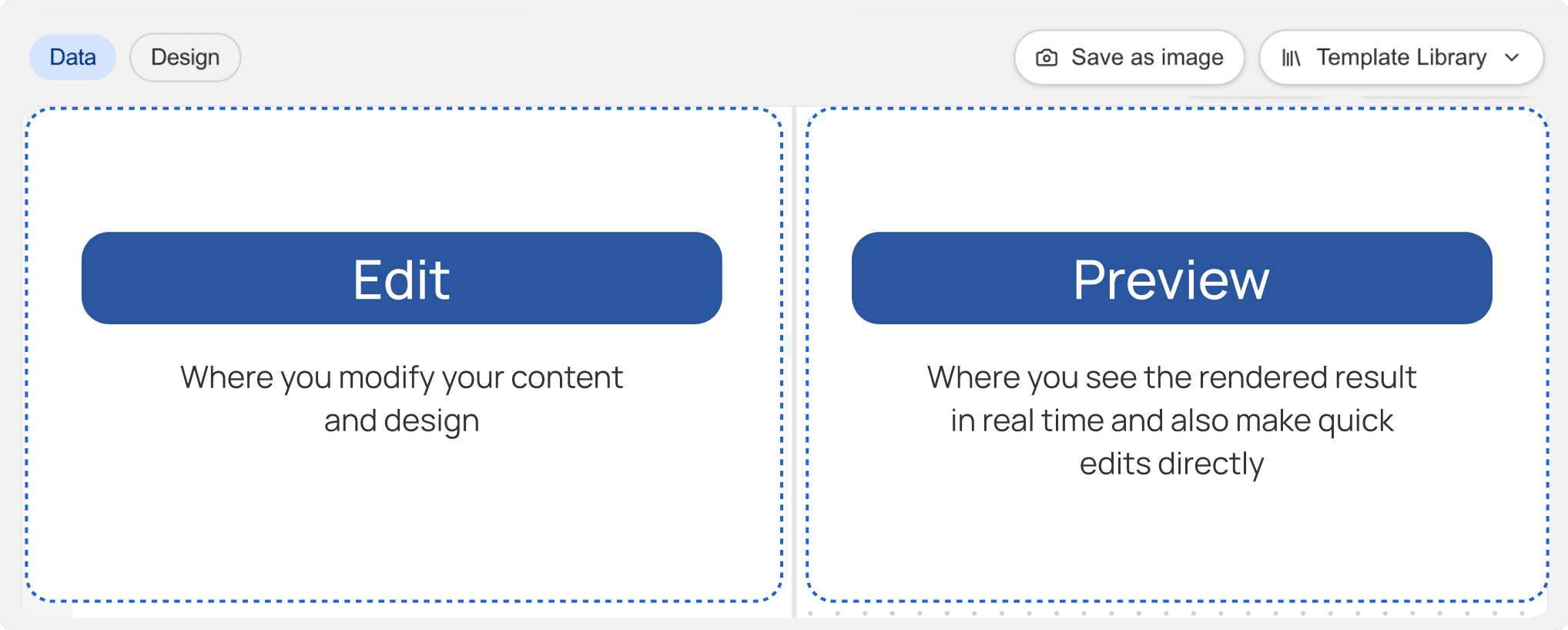
The canvas is divided into two main areas: Edit and Preview
2. Choose a template
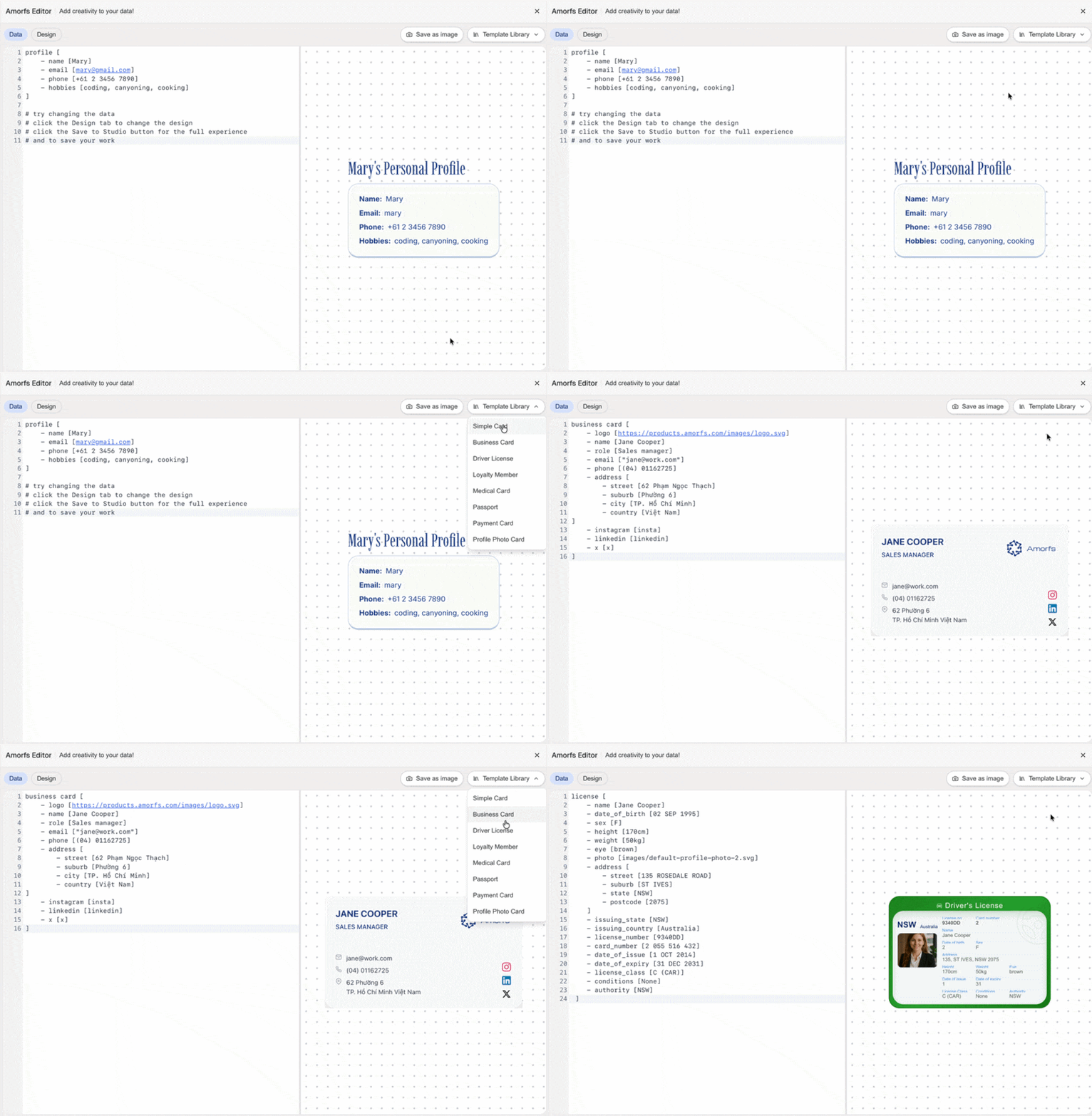
Click on the Template dropdown to explore available options, such as: Simple Card, Contact Card, Payment Card, Passport,...
Feel free to play around and see what works best for your use case.
3. Editing your template
Inside the Edit panel, there are two main tabs: Data and Design
3.1. Data Tab
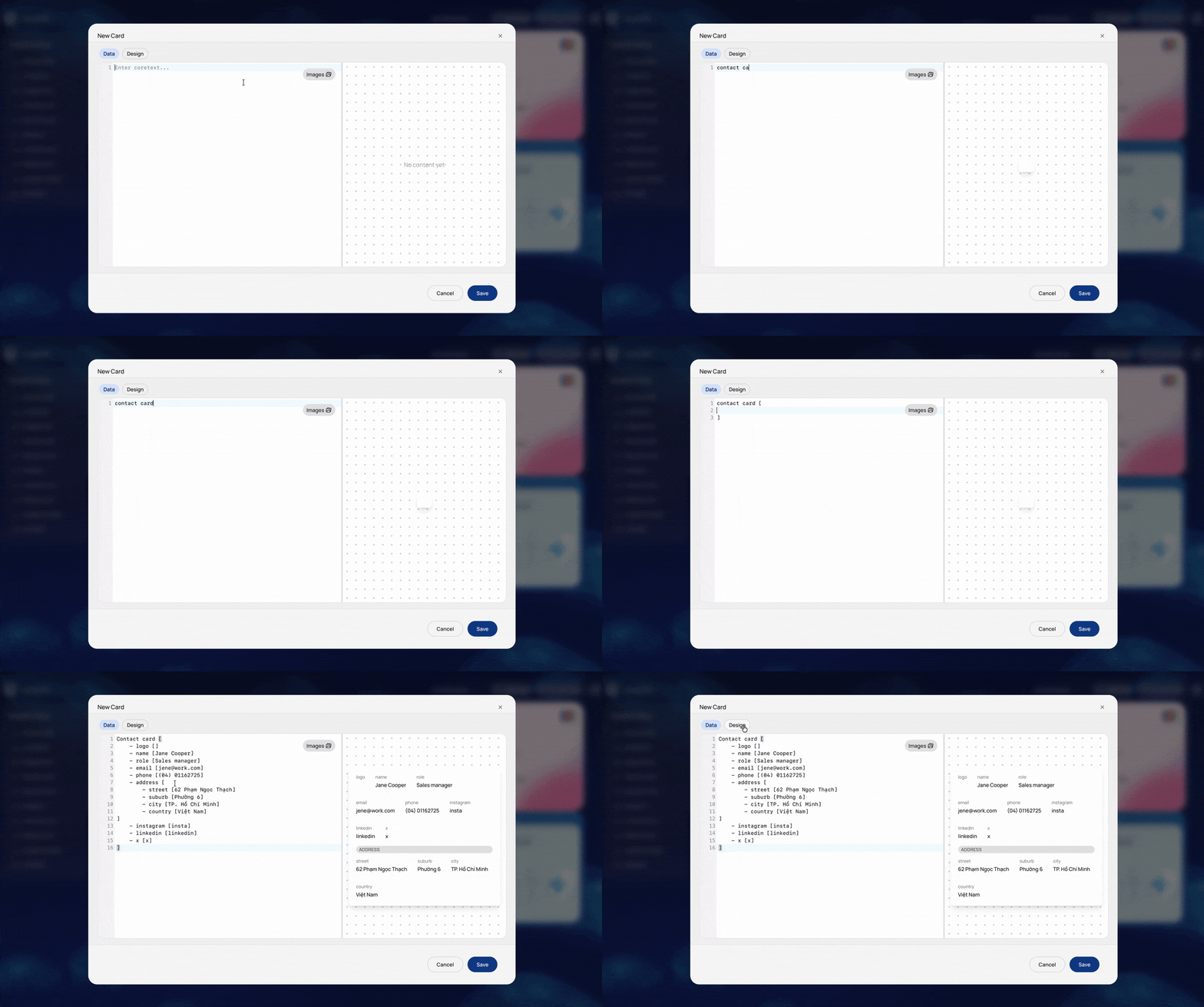
- Write your data using the Amorfs format, basic rules:
· Use - to mean “has a”
· Use [ ] to describe details
· Each part ends with ]
Example:Contact card [
- name [Jane Cooper]
- role [Sales manager]
- email [jane@work.com]
]
Want to understand this format more deeply?
Read More: Reading Your First Amorfs Document
- Edit directly on the card preview
While editing a card, you’ll see a live preview on the right side of the screen.
You can edit your card directly from this preview:
· Double-click any text on the card preview
· Edit or delete the text
· The data in the editor will update automatically
For quick fixes, this lets you adjust content visually without touching the format.
If you make a mistake, use Ctrl + Z (or Cmd + Z) to undo at any time.

3.2. Design Tab
This is where you control how your template looks using HTML and CSS to create an HTML snippet.
To connect your design with real data, Amorfs uses something called placeholders.
What is a Placeholder?
A placeholder is a marker in your design that tells the system: Replace this with real data.
It is always written inside double curly braces:
Standard format: {{description}} for the description itself. This is needed for multi-language support.
{{description[?]} for any items under the description. Works for text and images.
Examples:{{name}}: {{name[?]}} → displays name: Sam, Jack{{avatar[?]}} → displays the actual image
📝 Important Rules (Must Remember):
Always use the correct format:
{{expression...}}
Avoid using single curly braces{expression}Field names must match your Data
The name inside the placeholder must be exactly the same as in your Data tabUse image placeholders correctly
- In HTML: insidesrc
- In CSS: insideurl(...)Empty data won’t break your design
If a field has no data, the layout will still stay intact.
Data Tab | Design Tab |
|---|---|
profile_card [ - full name [Jane Doe] - avatar [https://example.com/avatar.png] ] | :template[{{#TEMPLATE}} <div class="profile-card"> <img src="{{avatar[?]}}" alt="" /> <div>{{full name[?]}}</div>. </div> {{#TEMPLATE}}] |
Getting Started with Playpen
1. Understand the canvas
The canvas is divided into two main areas: Edit and Preview
2. Choose a template
Click on the Template dropdown to explore available options, such as: Simple Card, Contact Card, Payment Card, Passport,...
Feel free to play around and see what works best for your use case.
3. Editing your template
Inside the Edit panel, there are two main tabs: Data and Design
3.1. Data Tab
- Write your data using the Amorfs format, basic rules:
· Use - to mean “has a”
· Use [ ] to describe details
· Each part ends with ]
Example:Contact card [
- name [Jane Cooper]
- role [Sales manager]
- email [jane@work.com]
]
Want to understand this format more deeply?
Read More: Reading Your First Amorfs Document
- Edit directly on the card preview
While editing a card, you’ll see a live preview on the right side of the screen.
You can edit your card directly from this preview:
· Double-click any text on the card preview
· Edit or delete the text
· The data in the editor will update automatically
For quick fixes, this lets you adjust content visually without touching the format.
If you make a mistake, use Ctrl + Z (or Cmd + Z) to undo at any time.
3.2. Design Tab
This is where you control how your template looks using HTML and CSS to create an HTML snippet.
To connect your design with real data, Amorfs uses something called placeholders.
What is a Placeholder?
A placeholder is a marker in your design that tells the system: Replace this with real data.
It is always written inside double curly braces:
Standard format: {{description}} for the description itself. This is needed for multi-language support.
{{description[?]} for any items under the description. Works for text and images.
Examples:{{name}}: {{name[?]}} → displays name: Sam, Jack{{avatar[?]}} → displays the actual image
📝 Important Rules (Must Remember):
Always use the correct format:
{{expression...}}
Avoid using single curly braces{expression}Field names must match your Data
The name inside the placeholder must be exactly the same as in your Data tabUse image placeholders correctly
- In HTML: insidesrc
- In CSS: insideurl(...)Empty data won’t break your design
If a field has no data, the layout will still stay intact.
Data Tab | Design Tab |
|---|---|
profile_card [ - full name [Jane Doe] - avatar [https://example.com/avatar.png] ] | :template[{{#TEMPLATE}} <div class="profile-card"> <img src="{{avatar[?]}}" alt="" /> <div>{{full name[?]}}</div>. </div> {{#TEMPLATE}}] |
Getting Started with Playpen
1. Understand the canvas
The canvas is divided into two main areas: Edit and Preview
2. Choose a template
Click on the Template dropdown to explore available options, such as: Simple Card, Contact Card, Payment Card, Passport,...
Feel free to play around and see what works best for your use case.
3. Editing your template
Inside the Edit panel, there are two main tabs: Data and Design
3.1. Data Tab
- Write your data using the Amorfs format, basic rules:
· Use - to mean “has a”
· Use [ ] to describe details
· Each part ends with ]
Example:Contact card [
- name [Jane Cooper]
- role [Sales manager]
- email [jane@work.com]
]
Want to understand this format more deeply?
Read More: Reading Your First Amorfs Document
- Edit directly on the card preview
While editing a card, you’ll see a live preview on the right side of the screen.
You can edit your card directly from this preview:
· Double-click any text on the card preview
· Edit or delete the text
· The data in the editor will update automatically
For quick fixes, this lets you adjust content visually without touching the format.
If you make a mistake, use Ctrl + Z (or Cmd + Z) to undo at any time.
3.2. Design Tab
This is where you control how your template looks using HTML and CSS to create an HTML snippet.
To connect your design with real data, Amorfs uses something called placeholders.
What is a Placeholder?
A placeholder is a marker in your design that tells the system: Replace this with real data.
It is always written inside double curly braces:
Standard format: {{description}} for the description itself. This is needed for multi-language support.
{{description[?]} for any items under the description. Works for text and images.
Examples:{{name}}: {{name[?]}} → displays name: Sam, Jack{{avatar[?]}} → displays the actual image
📝 Important Rules (Must Remember):
Always use the correct format:
{{expression...}}
Avoid using single curly braces{expression}Field names must match your Data
The name inside the placeholder must be exactly the same as in your Data tabUse image placeholders correctly
- In HTML: insidesrc
- In CSS: insideurl(...)Empty data won’t break your design
If a field has no data, the layout will still stay intact.
Data Tab | Design Tab |
|---|---|
profile_card [ - full name [Jane Doe] - avatar [https://example.com/avatar.png] ] | :template[{{#TEMPLATE}} <div class="profile-card"> <img src="{{avatar[?]}}" alt="" /> <div>{{full name[?]}}</div>. </div> {{#TEMPLATE}}] |
Explore Amorfs Studio
Once you’re comfortable using Playpen, you can move to Amorfs Studio for the full feature set.
In Amorfs Studio, you can:
- Save and manage your templates
- Upload and store images
- Create Rooms to organize content
- Share individual templates or entire Rooms
👉 Learn more about Amorfs Studio
Explore Amorfs Studio
Once you’re comfortable using Playpen, you can move to Amorfs Studio for the full feature set.
In Amorfs Studio, you can:
- Save and manage your templates
- Upload and store images
- Create Rooms to organize content
- Share individual templates or entire Rooms
👉 Learn more about Amorfs Studio
Explore Amorfs Studio
Once you’re comfortable using Playpen, you can move to Amorfs Studio for the full feature set.
In Amorfs Studio, you can:
- Save and manage your templates
- Upload and store images
- Create Rooms to organize content
- Share individual templates or entire Rooms
👉 Learn more about Amorfs Studio
Summary
Playpen helps you:
- Get started instantly (no login required)
- Experiment freely
- Understand how Amorfs works
Visit Playpen.
When you’re ready, transition to Amorfs Studio to unlock the full power of the platform.
Summary
Playpen helps you:
- Get started instantly (no login required)
- Experiment freely
- Understand how Amorfs works
Visit Playpen.
When you’re ready, transition to Amorfs Studio to unlock the full power of the platform.
Summary
Playpen helps you:
- Get started instantly (no login required)
- Experiment freely
- Understand how Amorfs works
Visit Playpen.
When you’re ready, transition to Amorfs Studio to unlock the full power of the platform.
TABLE OF CONTENT
TABLE OF CONTENTS


" height="47.8243px" id="Fi98aqQOS" width="48.001px"/><path d="M 20.148 22.45 L 21.494 15.115 L 13.655 15.115 L 13.655 12.521 C 13.655 8.646 15.176 7.155 19.111 7.155 C 20.333 7.155 21.317 7.185 21.883 7.244 L 21.883 0.596 C 20.81 0.298 18.186 0 16.666 0 C 8.646 0 4.949 3.786 4.949 11.955 L 4.949 15.115 L 0 15.115 L 0 22.45 L 4.949 22.45 L 4.949 38.409 C 6.805 38.869 8.747 39.115 10.746 39.115 C 11.73 39.115 12.701 39.055 13.654 38.94 L 13.654 22.45 L 20.147 22.45 Z" fill="rgb(255, 255, 255)" height="39.11523px" id="o10gvlFLv" transform="translate(13.253 8.885)" width="21.883200000000002px"/></g></svg>)